Overview
This guide explains how to complete the first-time SuperStream setup, then process and pay superannuation for your employees through Saasu.
Initial Setup
1. Create your Ozedi Client
Go to:
- Payroll > SuperStream Hub > SuperStream
- Read the statement, then select Acknowledge.
- If you do not acknowledge the statement, SuperStream processing and payments will not be available. You can still export a SAFF file and process super outside Saasu.
- Once acknowledged, your Ozedi client and payment details will be created within seconds.
You will receive two payment options:
- BSB and Account Number
- PayID
These are the payment details you will use when paying SuperStream submissions.
Screenshot Samples

SuperStream Hub Navigation
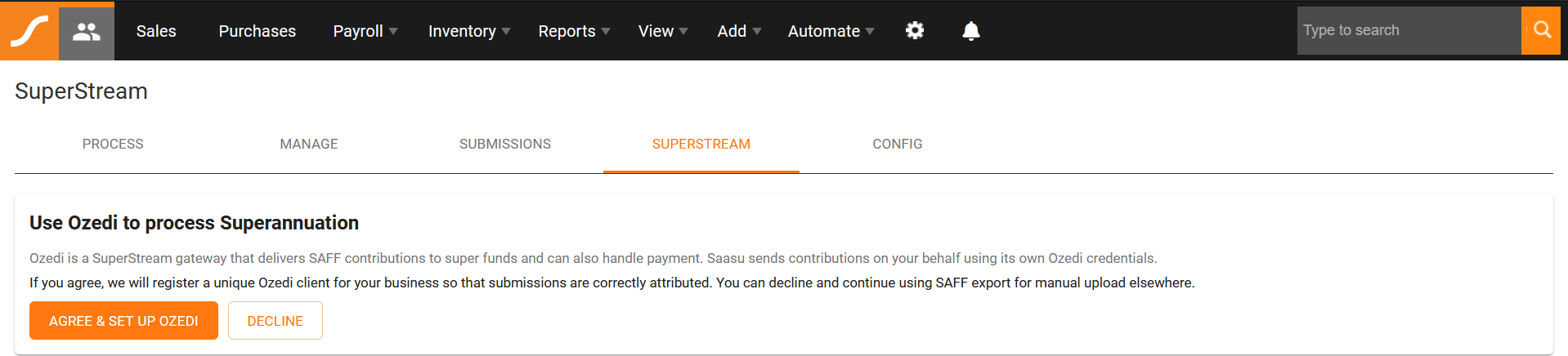
SuperStream Ozedi Acknowledgement
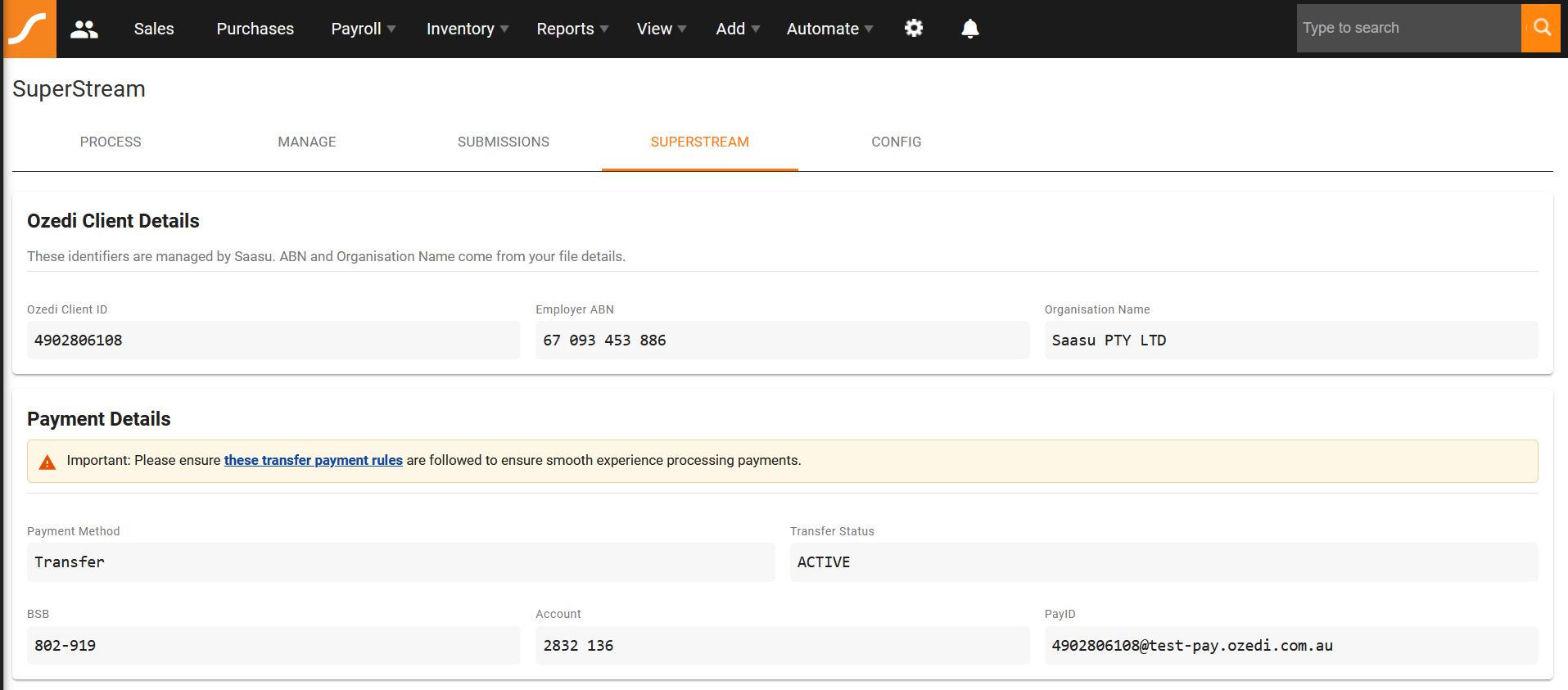
SuperStream Ozedi Client & Payment Details
2. Configure Details
Payer Bank Details
Go to the Config tab.
Enter your payer bank details:
- Bank account name
- BSB
- Account number
These details are required before you can submit to SuperStream. They are used if a refund ever needs to be returned to you.
Accounting Defaults
Next, enter your accounting defaults. These are used in the final Posted step on the Pay Runs screen after a submission is complete.
The accounting defaults allow Saasu to create the matching expense and payment transactions in your file, which helps with bank reconciliation and reporting.
The final posting step is currently manual. Previously, this step happened before generating the SAFF file export. It now happens after the SuperStream submission is complete, so transactions are only created once the process has succeeded and the chance of needing corrections is reduced.
Screenshot Samples
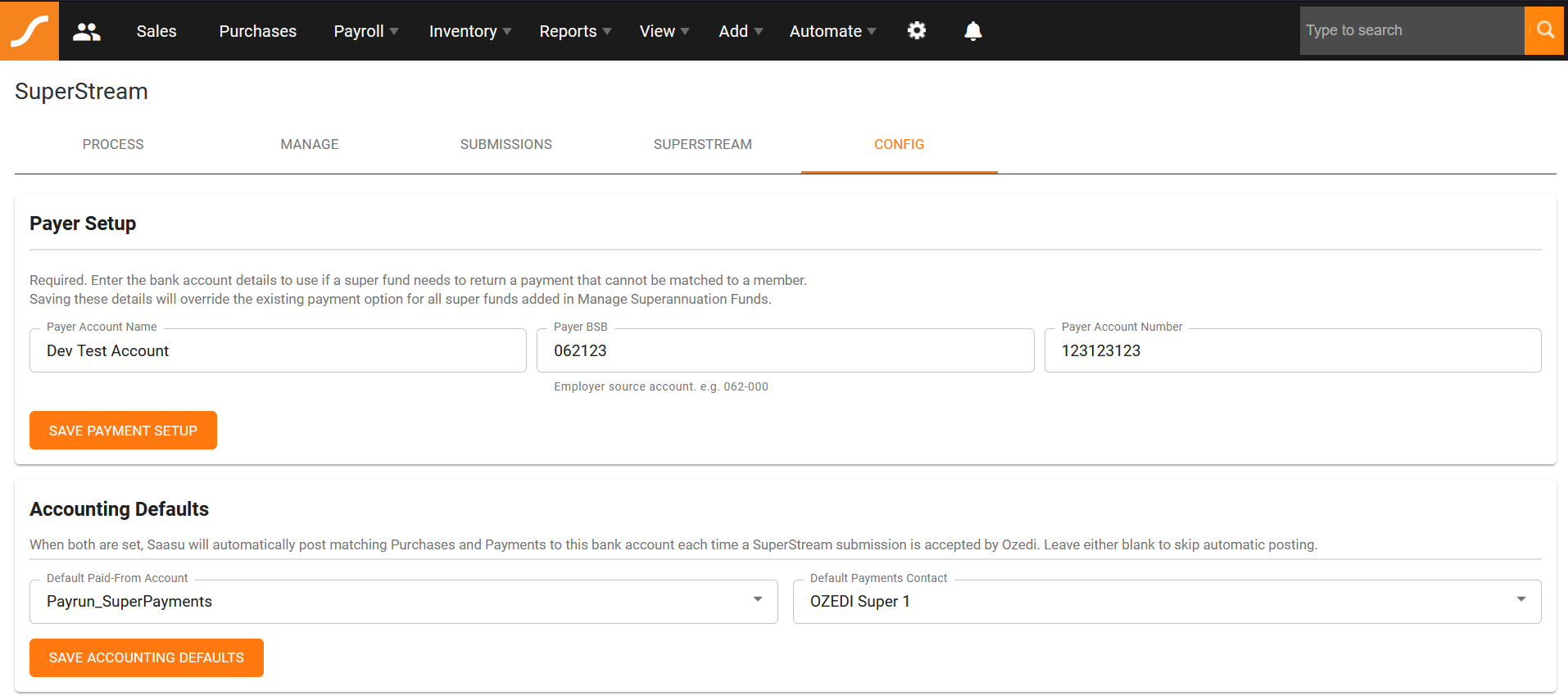
New Pay Runs Screen
Next, we will cover the steps to perform your first SuperStream submission.
Please note: manual payroll entries are not yet supported. We will support these soon. Standard pay runs are supported.
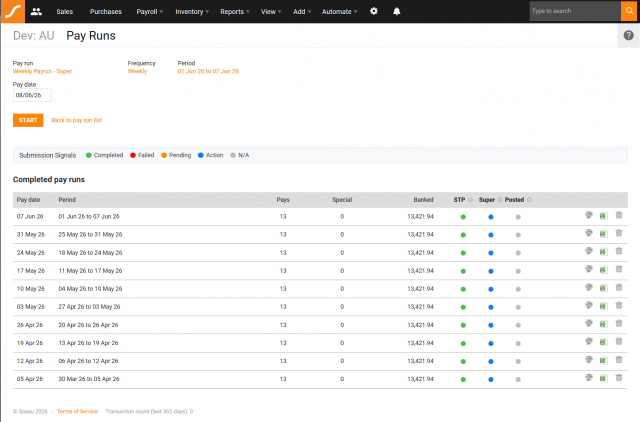
First, take a look at the updated Pay Runs screen.
Pay Runs Screen
The Pay Runs screen now includes new submission signals to show where each pay run is up to in the process.
Submission signals are clickable when an action is available. You can also hover over them to see more information.
Submission signal colours:
- N/A – nothing is available to action.
- Blue – next action is due. Click to continue.
- Orange – in progress or pending. The system is processing something or waiting for something.
- Red – failed. Click to retry or review the issue.
- Green – complete. No further action is required.

Submission Signals
How To Run Super & Pay It!
1. Process
Before processing super, the pay run must have a completed and accepted STP submission.
You can start from either:
- Payroll > Pay Run – click the blue submission signal under Super
- Payroll > SuperStream Hub > Process – select a completed pay run
Review the details before submitting:
- Employee member IDs
- Super funds
- Contribution amounts
- Total amount
When ready, click Submit to Ozedi.
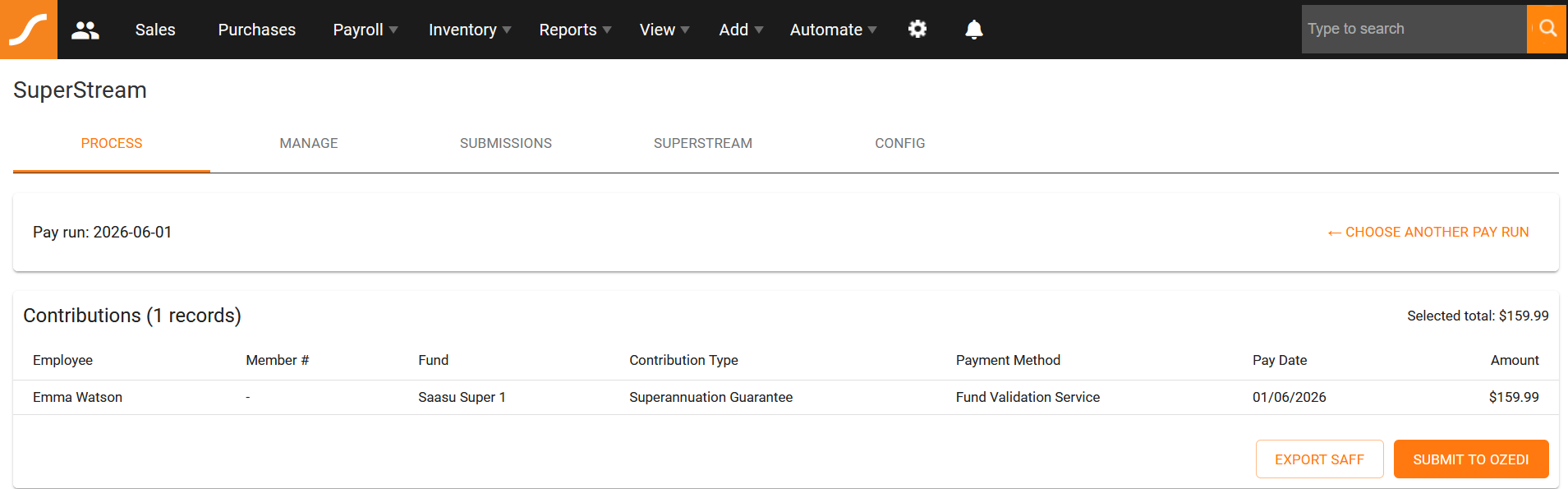
Process SuperStream Screen
2. Payment
After submitting, you will receive a payment prompt.
Important payment rules:
- The submission must be in Awaiting Payment
- Only one submission can be awaiting payment at a time
- The payment amount must match exactly
Incorrect amounts or payments made at the wrong time will be refunded.
Ozedi does not hold your funds. Payments are facilitated through Zepto using NPP first for faster payments. If NPP is not available for a fund, it falls back to BECS, the standard bank transfer system.
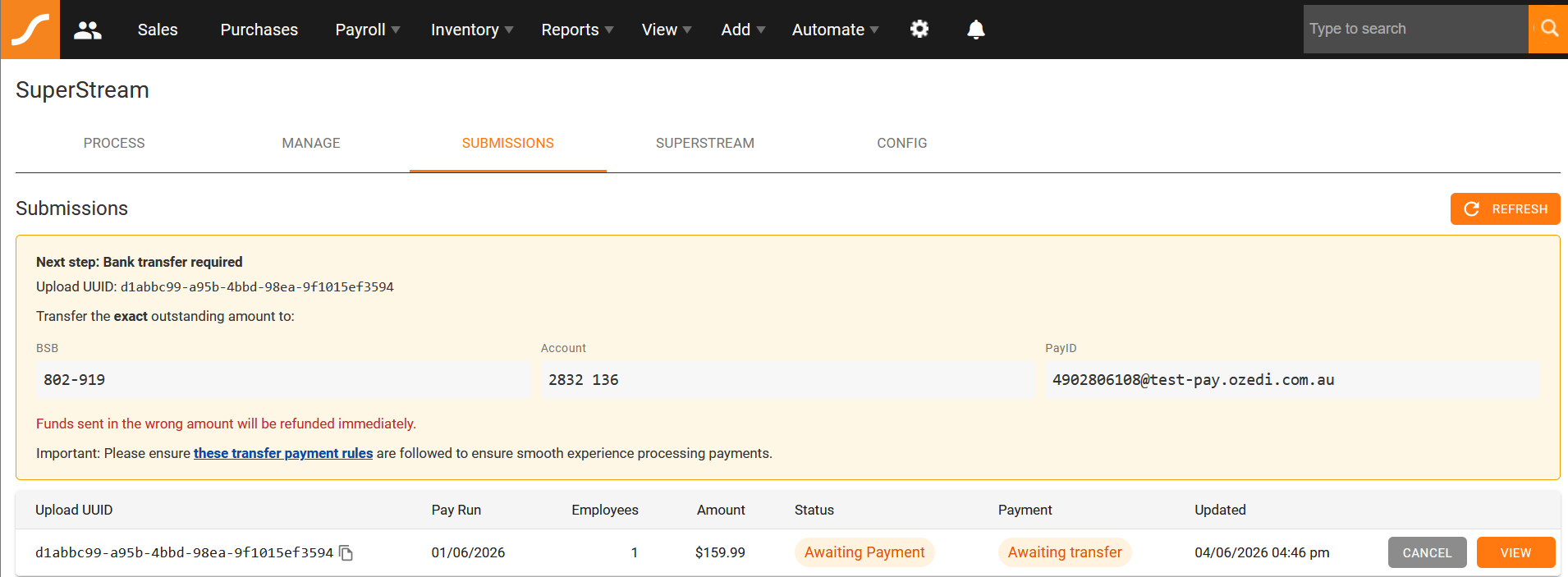
Awaiting Payment Status
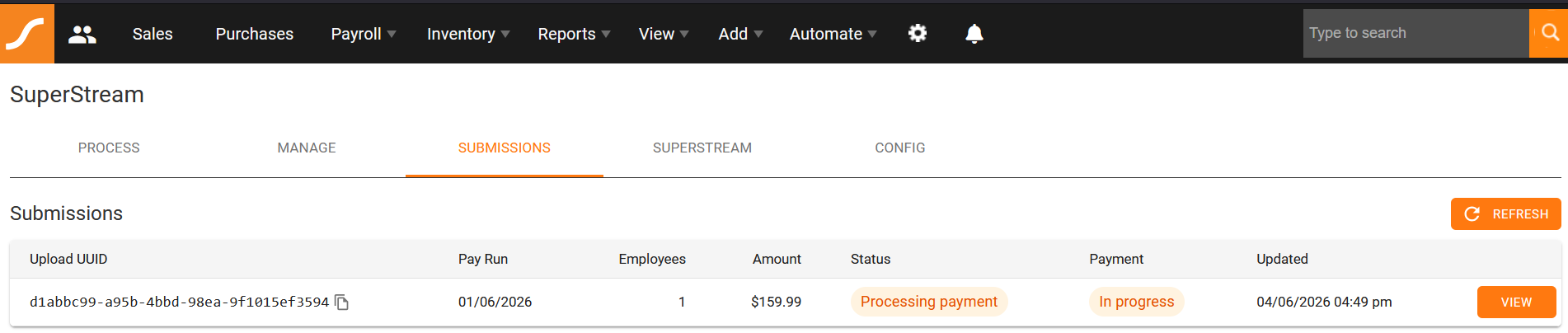
Payment Was Received
Submission Detail View (Debugging)
For more advanced information, open the submission from the Submissions screen.
The Submission Detail view shows additional details, error messages, and anything that may need attention.
If there is a problem with your submission, please contact Saasu Support and include your Client ID and UUID.
In rare cases, a payment or super fund platform error may occur, such as Account is Closed. If this happens, Ozedi may require you to pay the fund manually. When making the manual payment, you must include the PRN as the payment reference.
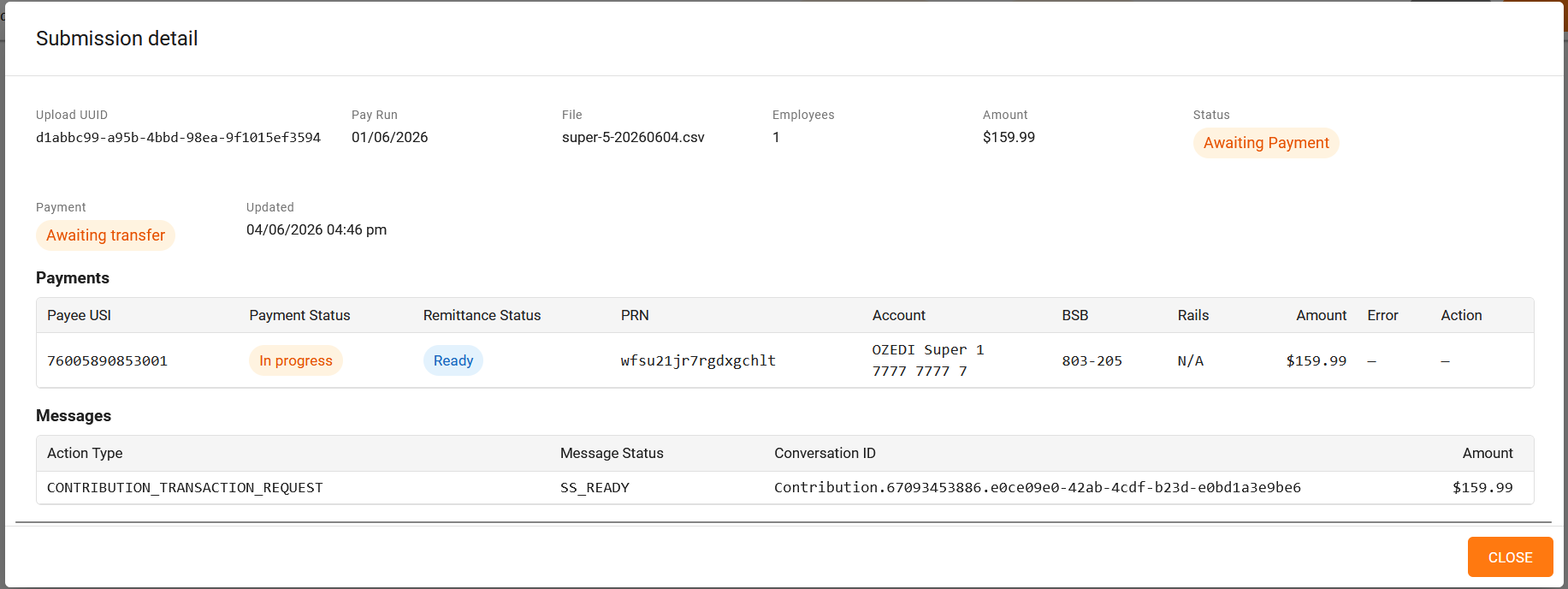
Submission Detail (Debug View)
Completion
If every step completes successfully, your super contribution data has been sent to the super funds and the related payments have been completed.
You can now proceed with the final Posted step to record the payment in your books.
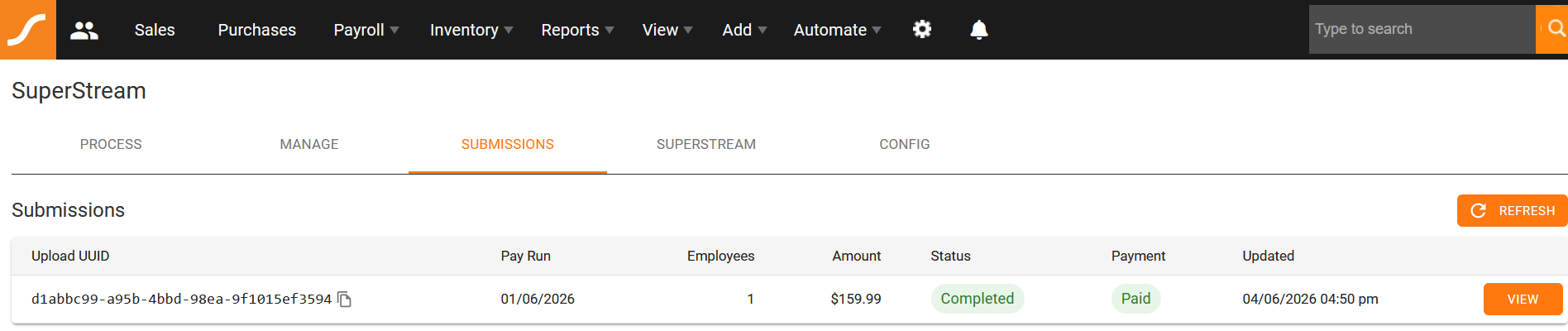
Submission Completed