Overview
Before using SuperStream, two things must be set up correctly:
- Super funds must be set up in Saasu
- Every employee must have the correct default super fund assigned
Both steps are covered in this setup guide:
This article also outlines the key SuperStream specific details you need to be aware of before processing super.
Please note: the existing legacy forms for managing super funds and employees will continue to be improved over time.
You can access shortcuts to these areas from:
SuperStream Hub > Manage
Fund Validation Service
APRA Regulated Funds
The ATO provides a complete list of APRA regulated super funds. SMSFs are not included in this list.
Saasu keeps regulated fund details up to date using the ATO’s Fund Validation Service. We run a daily job to create new funds or update existing funds by USI, so changes made by regulated funds are reflected in Saasu.
For regulated APRA funds, Saasu keeps the following details in step with the ATO:
- Company name
- Product name
- ABN
- USI
- Electronic Service Address, ESA
- Bank details, including BSB, account number, and account name
Bank details are only used if you export a manual SAFF file. They are not used when super is processed through SuperStream inside Saasu. Ozedi handles the payment process and ensures contributions are paid to the super funds.
SMSFs
SMSFs are not covered by the ATO list. It is your responsibility to make sure every SMSF’s details are correct, especially the ESA.
Saasu cannot validate SMSF details for you, and SuperStream requires them to be correct.
You may currently see an error saying an SMSF is not matched to the ATO. Please ignore this for SMSFs.

Fund Validation Error Example 1
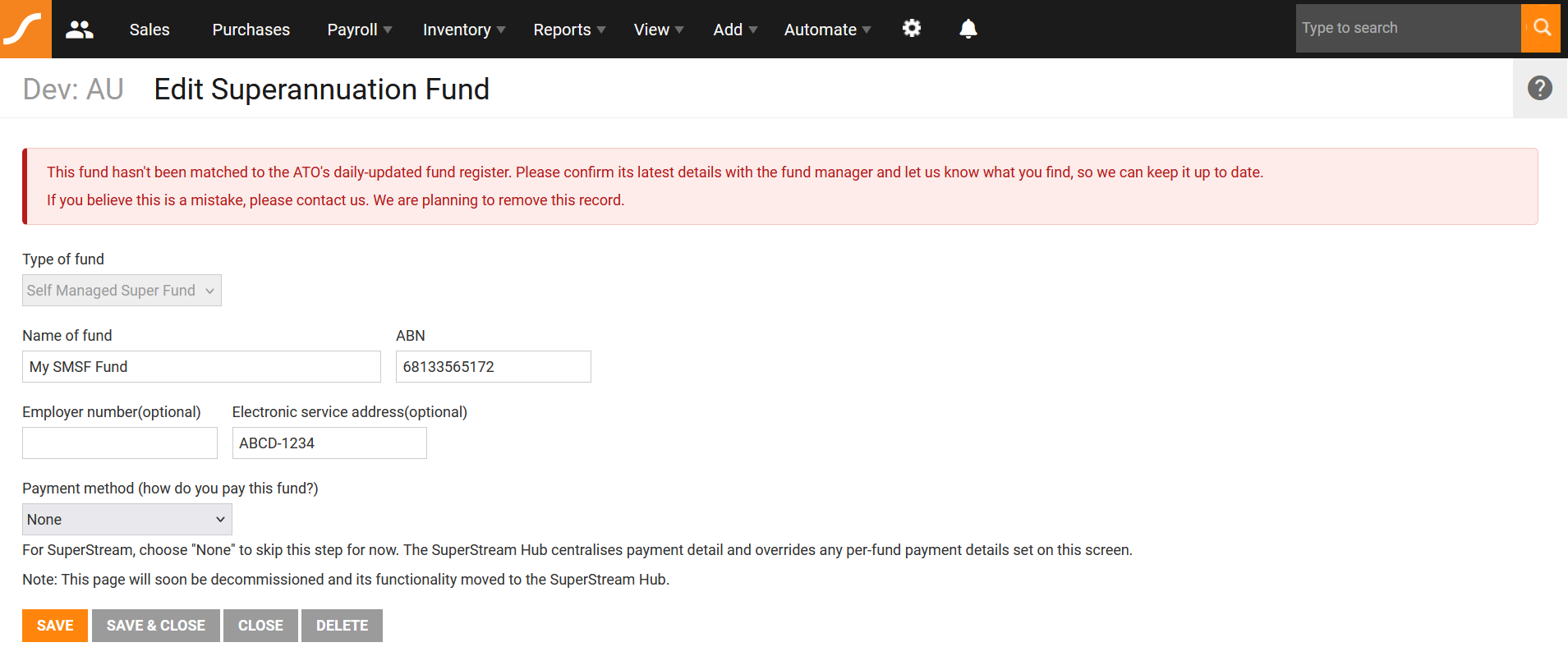
Fund Validation Error Example 2
Setup
1. Fund Setup and Creation
Follow the guide on how to set up super funds in Saasu.
Payment details entered for regulated APRA funds are not used by the new SuperStream process. If the fund is part of the ATO’s FVS list, Saasu will automatically use the fund’s official direct payment details.
Only SMSFs require payment details to be entered and maintained manually.
APRA Regulated Funds
- Select Regulated Fund as the type.
- Search for and select the fund from the list.
- Select None as the payment method.
Other payment options are overridden by the FVS details and will no longer affect SuperStream processing.
SMSFs
- Select SMSF as the type.
- Enter the SMSF details:
- Name
- ABN
- ESA, Electronic Service Address
- Enter the correct payment details by selecting EFT or BPAY.
- Make sure all SMSF details and payment details are present and correct.
We will continue to improve and optimise this process as we further develop SuperStream.
Below is an example.
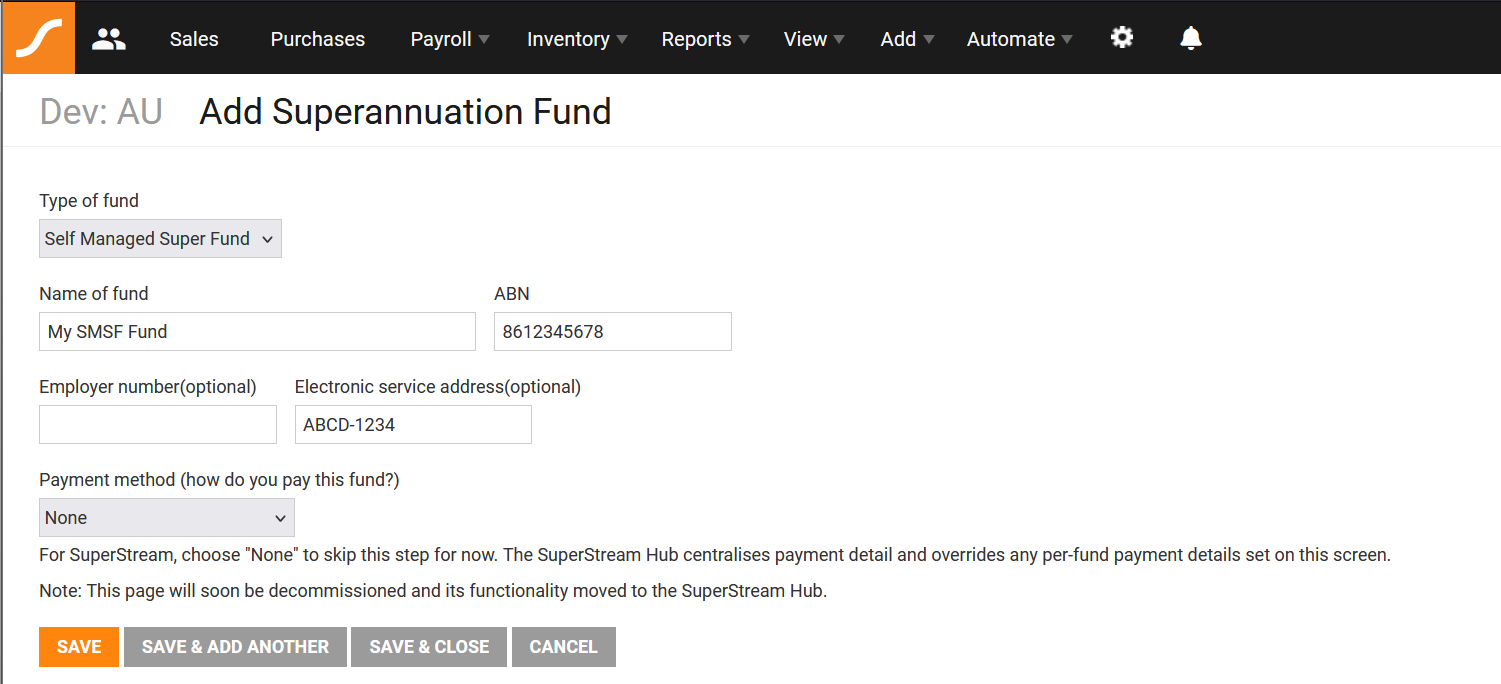
Adding SMSF Super Fund
2. Assigning Funds to employees
Follow the guide on how to assign a super fund to each employee.
Each employee must have the correct default super fund assigned before their super contributions can be processed correctly through SuperStream.
For regulated funds choose Direct Debit, the payment details are overridden as it’s part of the ATO’s FVS.
Otherwise, if it’s an SMSF, enter the correct payment details.
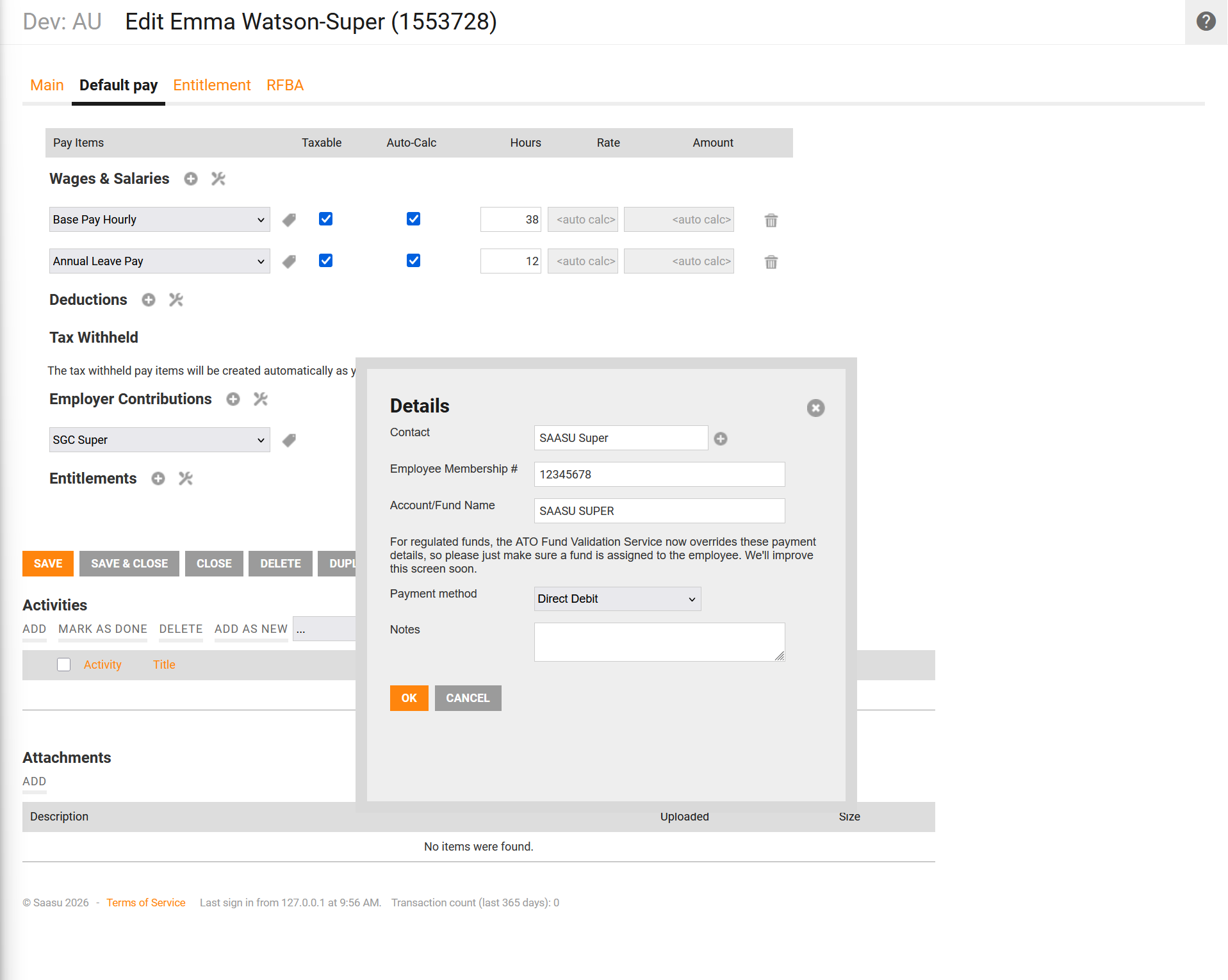
Adding Default Super to Employee
3. Fix any payroll entry mistakes
Updating an employee’s default super fund does not automatically update existing pay runs or payroll entries.
If a contribution is missing from the SuperStream list, appears under the wrong fund, or does not look correct, check the related payroll entries.
To fix this:
- Go to Payroll > Payroll Entries
- Edit each affected payroll entry
- Update the super fund details for that entry
- Make sure the details are correct for the specific pay date
If you are backdating changes, take extra care. If the employee changed super funds or fund details during that period, you must account for those changes correctly.
If you discover significant backdating errors, such as tens or hundreds of payroll entries that need to be corrected, please raise a request with Saasu Support and we will see if we can assist further.